
FAQs
Get help with your trading account or browse answers on specific markets and products.
Account Management
Account Management
When you created your trading account, you will have chosen a username and password. We will have sent both details to you in separate emails.
Use these details to log in to Web Trader, our web-based platform, or mobile trading apps. One set of login details will give you access to all the platforms your account supports. If you opened a MetaTrader account, you will have received separate log in details.
To log in on Web Trader, click here. To log in on our mobile trading apps, simply open the application and enter your details when prompted.
To log in to My Account, your trading account management portal, click here.
If you have entered your password incorrectly five times, your trading account may be locked. Please request to reset your password using the password reset link.
If you have not accessed your trading account for 24 months or more, you will need to reactivate it. You can reactivate your account here.
If you have forgotten your username, please contact us via Live Chat or submit a query and we'll get back to you as soon as possible.
If you have forgotten your password, please click here and fill in your username and email. You will then receive an email with a link to reset your password.
If you wish to change your password, you can do so from within My Account by clicking the ‘Profile’ tab and then ‘Change Password’ on the left side of the page.
If you’ve received an email confirming that your password has been changed and you didn't change it, someone may have fraudulently accessed your account, if so please contact us immediately.
If you’re unable to contact us immediately, please secure your trading accounts by changing your email account password right away. Then use the forgotten password functionality to reset your password.
If you have not used your trading account for 24 months, it will become inactive. To reactivate your account, you simply need to complete our short online Account Reactivation Form to ensure we have your latest contact details and can reassess your trading experience.
After you submit the short form, a member of our account management team will be in touch to let you know if we need anything further from you or to let you know when your trading account has been reopened.
If you have any questions or need to discuss any aspect of your trading account, please call us on +65 6826 9988.
If you wish to update your email address, you can do so from within the trading platform by clicking on your account name from the top bar then selecting 'MyAccount' and navigating to the 'Profile' section.
You can also request a name or address change in ‘MyAccount’, for which you will need to provide supporting documents. Alternatively, contact our Client Support team.
Type of Change | Required documents |
|---|---|
Name | Proof of Name Change (such as Deed Poll, Marriage Certificate, Driver’s Licence) |
Address | Proof of your updated address (issued within the last 6 months) such as a recent copy of your Utility Bill, Bank Statement or Statement/Contract note from any broker |
Contact number/Email | No supporting document required |
You can view previous statements via the 'Statements and Contracts' tab on the trading platform. On Web Trader, select the 'Statements and Contracts' icon from the top navigation bar. On our mobile app, tap 'Account' followed by 'Statements' from the list of options.
Please note that you can edit your search history by selecting the 'History Start date' and 'History End Date' options. You can export your data to Excel by selecting the Excel sign at the bottom of your screen. The account history search is limited to a maximum of 400 entries.
Yes, we will send you contract notes each time a trade takes place on your trading account, and statements will be sent monthly by default. If you wish to change the frequency of your statements, please contact our client support team.
If you’re not receiving your contract notes and statements by email, please log in to MyAccount and ensure your email address is correct and up to date. Your contract notes and statements are also available to view in the trading platform.
Yes, you can. You will need to contact our client support team to make the request and provide us with your compliance officer's contact details. We will require:
- Employer's name
- Contact name
- Compliance department email address
No. However, clients can download their account history for a chosen timeframe.
Yes, it’s possible; please contact our Client Support team to find out more.
You can close your live account by either submitting a request via MyAccount, or by emailing our Client Services team. Please make sure that you have withdrawn all funds and closed all positions or orders before making your closure request. There is no fee to close an account.
To close your account via MyAccount:
1. Log into MyAccount.
2. On the Accounts page, click the three dots in the bottom right corner of your account details.
3. Select “Close This Account” option and confirm.
4. Your request will be processed automatically, and a confirmation email will be sent.
5. Note that there may be delays if you still have funds available or any open positions.
To close your account via email:
1. Send an email to [email protected]
2. The email must be sent from the email address on file and contain your name, date of birth and post code, account number or username, and the reason for closure.
3. Processing typically takes 1-2 business days.
4. A confirmation email will be sent once the account is closed.
5. Note that there may be delays if you still have funds available or any open positions.
Demo Account
Demo accounts are intended to enable you to familiarise yourself with the tools and features of our trading platforms. Success or failure in simulated trading bears no relation to probable future results with any live trading that you may choose to engage in, and you should not expect any success with the demo account to be replicated in actual live trading.
Please note that a demo account cannot always reasonably reflect all of the market conditions that may affect pricing, execution and margin requirements in a live trading environment. Margin and leverage settings may vary from time to time between your demo account and a live account due to live account setting changes imposed as a result of elevated market volatility or other factors.
Your demo account gives you 12 weeks’ unlimited access to over 6,000 markets. It comes with a virtual balance of $20,000 for you to trade risk-free.
While it is not possible to extend the duration of a demo account, if you feel you need more time to practice trading, you can always apply for another one.
To open a live account, either click the link on the top of your trading platform or navigate to the live account application form using this link.
Open An Account
Applying for a CFD trading account is quick and easy. You can apply in a matter of minutes by completing our simple and secure online application form.
Singpass users can apply using Myinfo and have their CFD trading account created instantly. If you apply without using Myinfo then you’ll need to submit supporting documents before we can create your CFD trading account.
As a MAS-regulated broker in Singapore, we are required to ensure that our products are suitable for applicants. We will ask you questions about:
- Your personal details
- Your financial status
- Your trading experience
It is important that you answer the questions accurately as it may impact your ability to create a CFD trading account.
It is important that you understand the risks involved in trading before you create a CFD trading account. MAS regulations require CFD providers in Singapore to conduct a mandatory Customer Knowledge Assessment (CKA) for all applicants, to ensure that they possess relevant education, trading or working experience in order to create a CFD trading account. This assessment is included in our application form, and you will be informed of the outcome upon submission of your application.
If you fail the assessment, you can still create a FOREX.com Singapore trading account by doing the following:
- Navigate to the Customer Knowledge Assessment website, which can be found here
- Complete the ABS ‘Contracts for Difference (CFDs)’ module
- Submit your quiz certificate to us either via email or by using the document upload feature in MyAccount.
You can find full details of the CKA here, or download a step-by-step guide to completing the quiz.
Your application will be considered based on your individual circumstances; these include both income and savings. There is a $150 minimum deposit ($250 for debit/credit cards) to create a CFD trading account.
The time taken to create a CFD trading account depends on the speed at which we can verify your identity. If you apply with Myinfo using your Singpass account, then (in most cases) we will be able to electronically verify your identity almost instantly and you will be able to trade as soon as your CFD trading account is funded. If you choose not to apply using Myinfo, then you will need to provide supporting documents in order for your CFD trading account to be created.
Yes, in certain circumstances it is possible to create a CFD trading account from outside of Singapore subject to review and approval. If you have any questions relating to applications from outside of Singapore, please contact our Client Management team.
For Singaporean residents who apply using Myinfo, in the majority of cases you will not need to send us any supporting documents and your CFD trading account will be created instantly, as we will be able to verify your details online. On rare occasions we will be unable to confirm your identity electronically (for example if you have moved house recently), and in such cases we will email you and ask that you provide certain documents.
If you apply without using Myinfo, then you will be required to provide supporting documents before your CFD trading account can be created.
If you are asked to provide documents, then we will usually require copies of:
- one document for proof of identity
- one document for proof of address
- CKA quiz certificate (for those who do not pass the initial CKA assessment during application)
You will receive an email detailing specifically what we need.
The following are examples of documentation that could be requested:
- Identification documents: machine readable NRIC/work pass/identity card, machine readable passport, photocard driving licence
- Proof of address (dated within the last three months): utilities bill, bank or credit card statement, mortgage statement
If we do require documentation from you, you will be able to upload these securely using our online My Account portal. Either use the link provided in the email, or the redirect on the account application page. Please ensure the documents you provide meet the specifications listed.
As soon as your account has been opened, and you have funded your CFD trading account, you will be free to trade.
If you haven’t traded with us for over 24 months, your CFD trading account will go into a dormant status preventing you from being able to login (for security purposes). You may be charged an inactivity fee of $15 a month when your account becomes dormant after 24 months.
To reactivate your CFD trading account you simply need to complete our short online Account Reactivation Form. We need to ensure that we have your latest contact details on file, and update you with any changes to our terms and conditions or service features that may have occurred during your inactivity.
After you submit the form, a member of our account management team will be in touch to let you know if we need anything further from you, or to let you know that your CFD trading account has now been re-activated.
If you have any questions or need to discuss any aspect of your account, please contact us on +65 6826 9988.
Yes, you can create a joint CFD trading account with somebody else, however there is a special application form for this which must be completed and sent to New Accounts. Please note that you cannot add a second named person to an existing single account, you must apply for a new joint account. You are also permitted to hold a joint and single CFD trading account simultaneously.
See our Joint Account Application Form.
Yes. There is a special application process for this trading account type, as extra documentation is required. Please complete our Corporate Trading Account form or contact New Accounts if you are interested.
Our Client Management team are on hand to answer any questions you may have about creating a CFD trading account on +65 6826 9988 or via live chat.
Two-Factor Authentication (2FA)
Two-Factor Authentication (2FA) is an additional layer of security that you will need to enable in order to access your FOREX.com account .
This feature, once activated, will require you to enter a 6-digit verification code, also known as a one-time password (OTP), in addition to your username and password each time you log into the FOREX.com trading platform, mobile app or MyAccount.
This form of identity verification provides an additional security measure and further reduces the chance of unauthorised access to your account.
2FA will become mandatory for all Singaporean financial services providers, including FOREX.com, on 12 September 2025, meaning that clients will be required to enter an OTP in order to access their account.
FOREX.com introduced mandatory 2FA on 6 September 2025. Clients who log in who have not enabled 2FA will be prompted to do so upon logging in to the trading platform or MyAccount.
FOREX.com will not be liable for any disputes or losses arising from a client being unable to access the trading platform due to 2FA not being enabled prior to the 6 September 2025, and we have taken measures to provide sufficient notice to clients well in advance of this date.
We recommend taking the following actions prior to enabling 2FA:
- Ensure that both the mobile phone number and email address registered on your account are up to date and accurate, to ensure you can successfully receive OTPs. You can review and update both under the 'profile' section in MyAccount. For mobile phone numbers, please ensure that the country code (e.g. +65) is included to ensure SMS can be received successfully.
- Download an authenticator app for your mobile device, such as Google Authenticator (available for both iOS and Android), which provides a convenient way to generate OTPs to log in to your account with.
- [MT4 users only] Download and install the MetaTrader 4 mobile app (you will need this to generate OTPs to log in to the MT4 platform with)
Once you have taken the steps above, you will need to activate 2FA on your FOREX.com trading account from MyAccount (details are listed in the question below).
Once 2FA is enabled, you will then need to enter an OTP each time you log into your trading account and/or MyAccount.
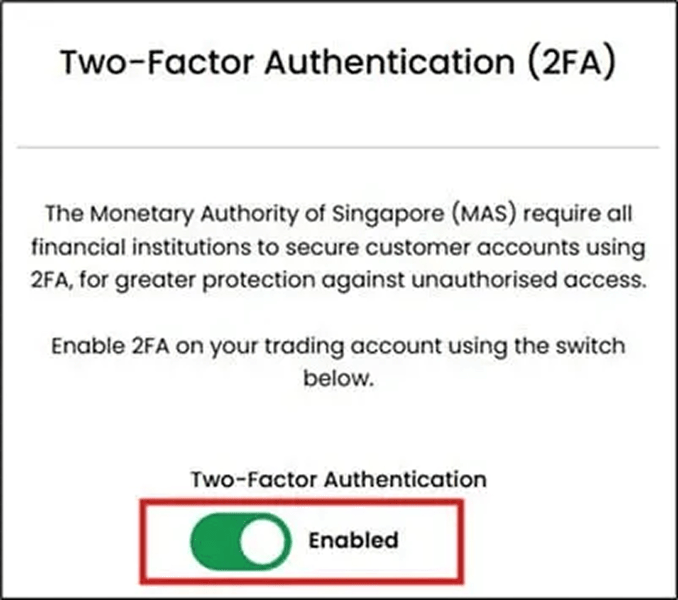
New clients: you will be required to enable 2FA after you submit your account application. Follow the on-screen instructions in MyAccount and switch the ‘Two-Factor Authentication’ toggle to ‘Enabled’ when prompted.
Existing clients: If you haven’t enabled 2FA then you will be prompted to do so the next time you log in to either the trading platform, mobile app or MyAccount. Follow the on-screen instructions and switch the ‘Two-Factor Authentication’ toggle to ‘Enabled’.
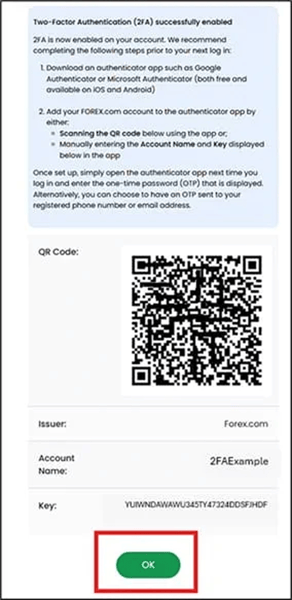
Once successfully enabled, a confirmation message will be displayed alongside details for adding your FOREX.com account to an authenticator app. If you wish to use an authenticator app for generating OTPs, launch your chosen app and scan the QR code displayed to add your FOREX.com account. Alternatively, if you are enabling 2FA from the mobile app then you can enter your account name and key manually.
Select the ‘OK’ button to complete the process and return to the main MyAccount dashboard.
No additional set up is required for SMS or email and we will use the current contact details on your account to send OTPs to you, should you choose these methods. We recommend ensuring both your phone number and email address are up to date, and for phone numbers ensure that the country code i.e. +65 is included.
MetaTrader 4 (MT4) uses a separate 2FA process that must be set up in order to access the MT4 trading platforms on desktop and mobile.
You will need to:
- Download the MT4 mobile app(available on both Android and iOS)
- Bind your MT4 trading account following the steps below
- Use the in-built OTP generator each time you log in
It is important to note that the only way to access the MT4 trading platforms once 2FA is enabled is by using the OTP generator from within the MT4 mobile app - receiving an OTP via SMS or email is not currently supported. Additionally, 2FA set up must be done using the MT4 mobile app and cannot be done through the MT4 desktop app.
As funding and managing your MT4 account is done via MyAccount, you will need to ensure that you have also enabled 2FA from within MyAccount. You can find steps to do so here.
Setting up 2FA for MetaTrader 4
Once you have downloaded the MT4 mobile app, you will need to bind your MT4 trading account. To do so, follow the steps below:
On Android
1. Launch the MT4 mobile app and log in using your account credentials
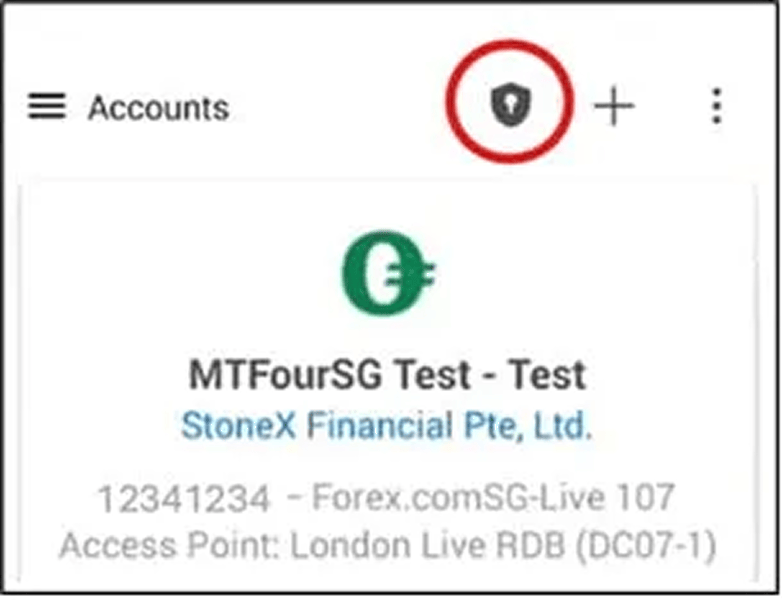
2. Tap the ‘shield’ icon
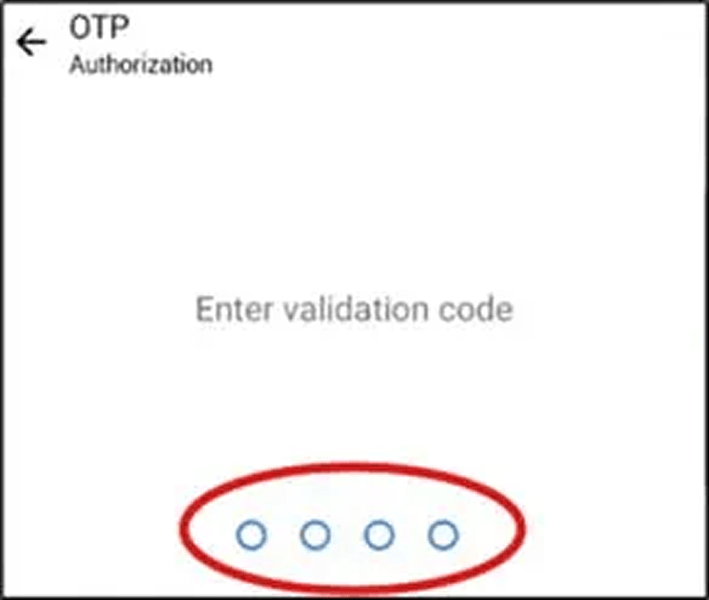
3. Set a 4-digit validation code when prompted. You will need to enter this code each time you access the OTP generator needed to log in to MT4.
4. Select ‘Bind to account’
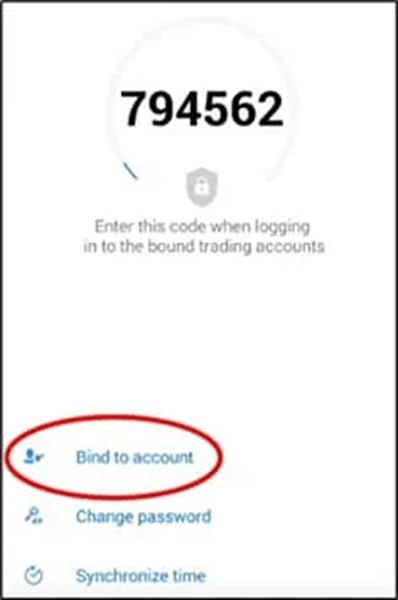
5. Ensure that the FOREX.com server (Forex.comSG-Live 107) is selected under the ‘server’ field, enter your MT4 account number and password and ensure the ‘Bind’ checkbox is ticked.
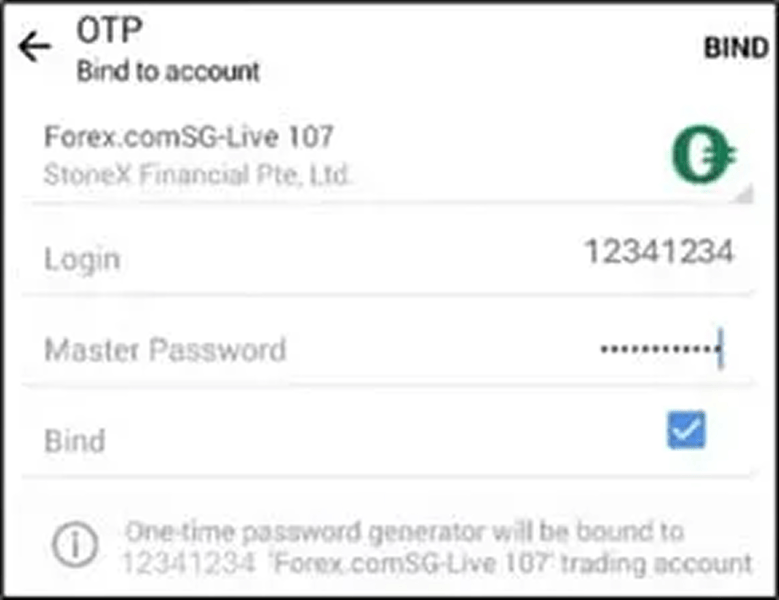
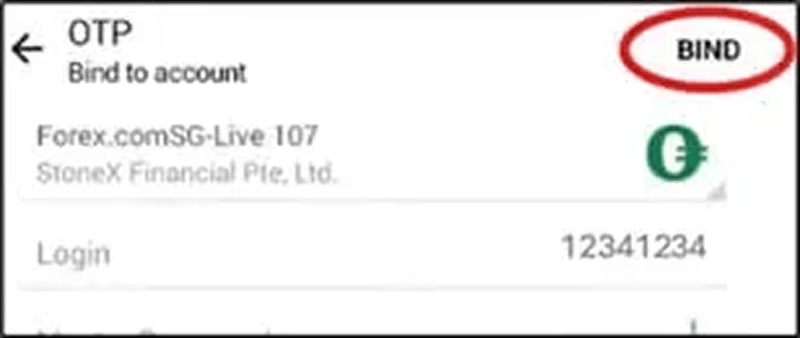
6. Tap on ‘BIND’ in the top-right corner.
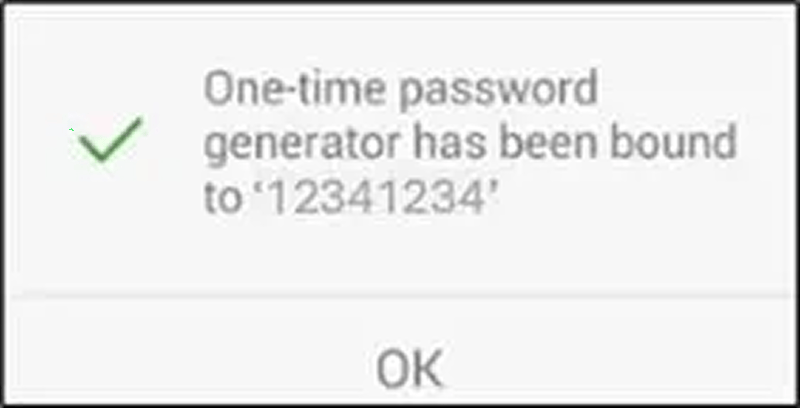
7. A confirmation message will be displayed once binding has been completed.
On iOS
1. Launch to MT4 mobile app and log in with your account credentials
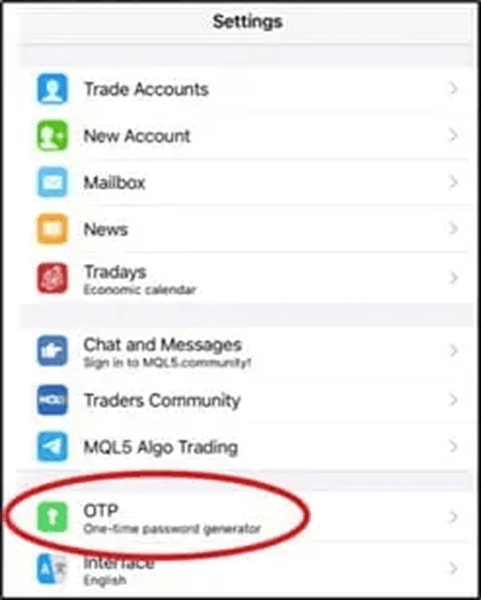
2. Navigate to ‘Settings’ then select ‘OTP’
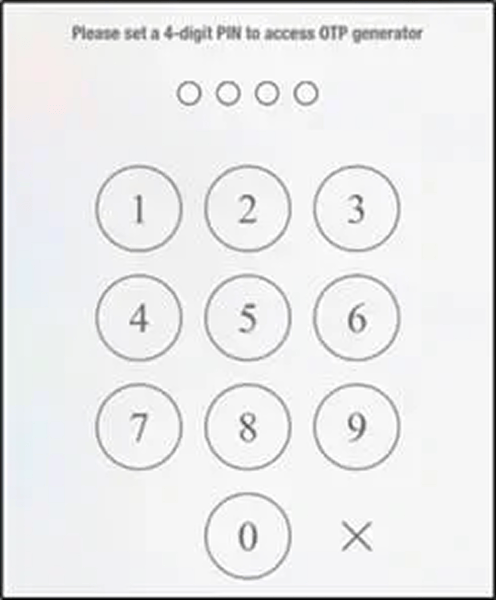
3. Set a 4-digit validation code when prompted. You will need to enter this code each time you access the OTP generator needed to log in to MT4.
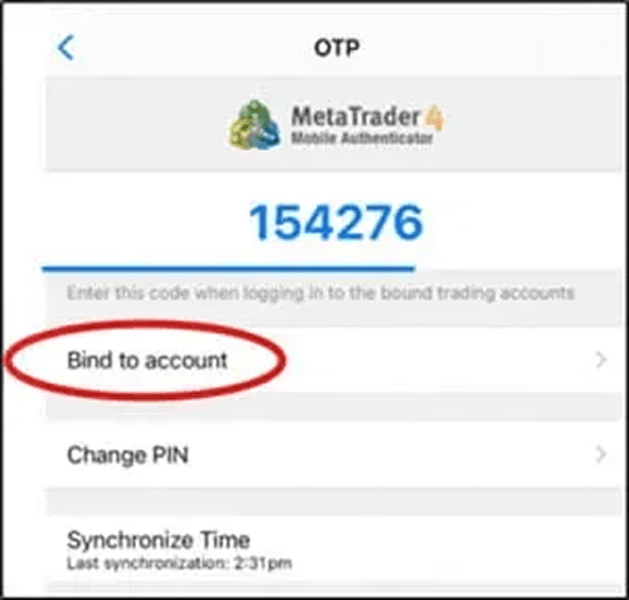
4. Select ‘Bind to account’
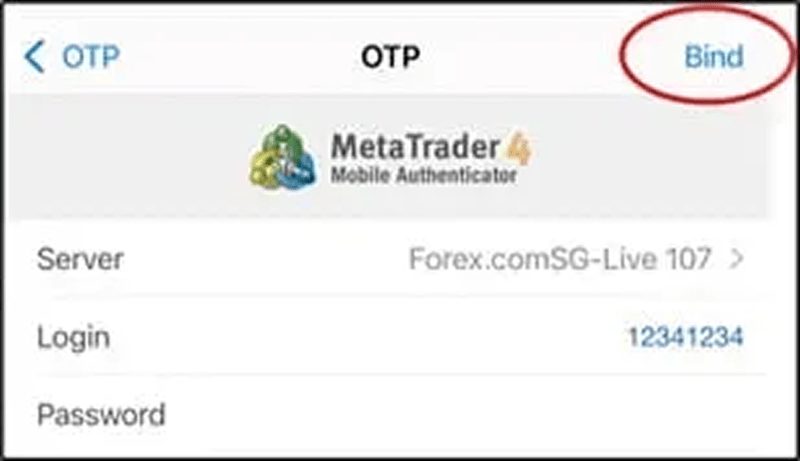
5. Ensure that the FOREX.com server (Forex.comSG-Live 107) is selected under the ‘server’ field, enter your MT4 account number and password and ensure the ‘Bind’ toggle is set to ‘on’.
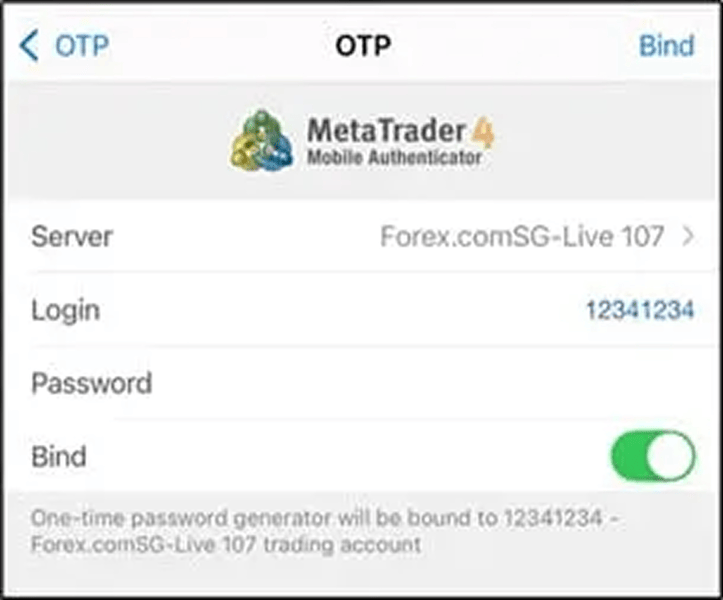
6. Tap on ‘Bind’ in the top-right corner to complete the process. A confirmation message will be displayed once the binding has been successfully completed.
To access your FOREX.com account via TradingView, you will need to enable 2FA from within MyAccount first. Simply log in to MyAccount with your username and password and follow the on-screen instructions. Once 2FA has been enabled, you can log in to TradingView as usual.
Desktop / web browser
1. Navigate to the log in section and enter your account username and password and select ‘log in’.
2. You will be presented with a second screen asking you to enter an OTP.
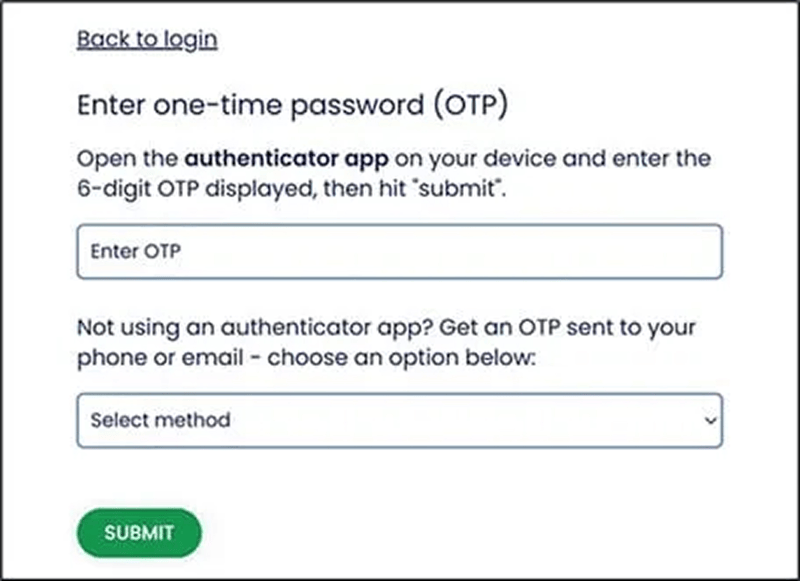
3. You can either retrieve an OTP manually by launching your authenticator app and entering the code displayed, or have an OTP sent to you via SMS or email. Simply choose your preferred option from the drop-down menu provided and enter the code once you receive it.
4. Click ‘submit’ to complete the log in process
We recommend adding your FOREX.com account to an authenticator app such as Google Authenticator as an additional means for generating OTPs, in addition to SMS and email. Most authenticator apps are free to use, user friendly and fast. Please check with your mobile provider as you may incur a charge for receiving an SMS.
FOREX.com mobile app
1. Launch the mobile app and enter your username and password and tap ‘Log in’.
2. You will be presented with a ‘2F Authentication’ screen where you will be required to enter a 6-digit authentication code (OTP).
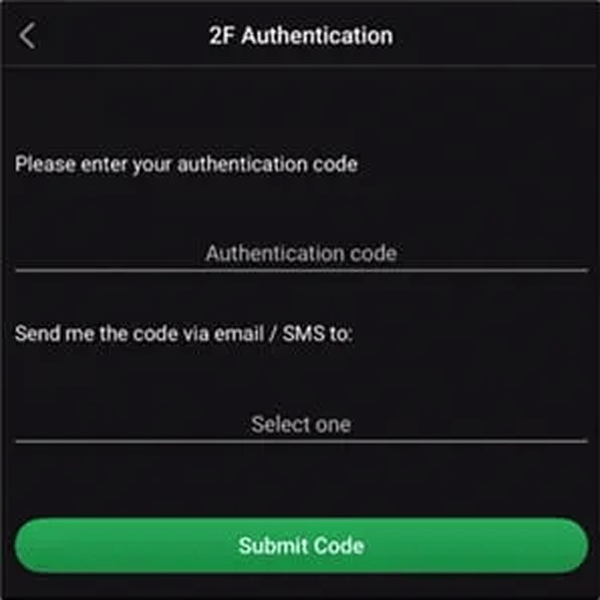
3. You can either retrieve an OTP manually by launching your authenticator app and entering the code displayed, or have an OTP sent to you via SMS or email. Simply choose your preferred option from the ‘Send me the code via email/SMS’ drop-down menu and enter the code once you receive it.
4. Tap ‘Submit Code’ once done to complete the log in process.
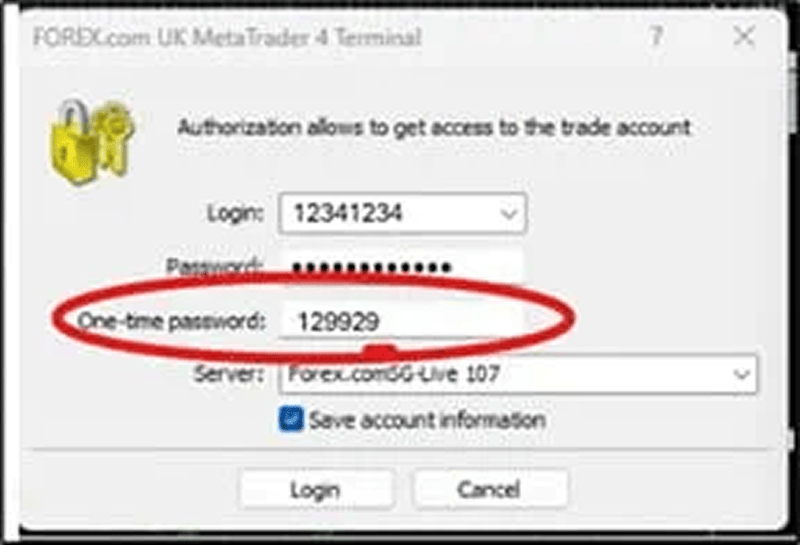
When logging in to the MT4 desktop, enter your account credentials as usual. There is also a ‘One-time password’ field on the log in window. To retrieve your OTP, launch the MT4 mobile app and follow the steps below:
Android
1. Tap the ‘shield’ icon
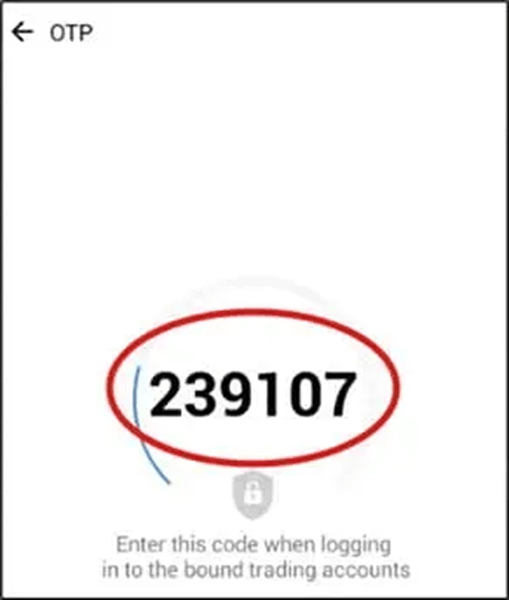
2. Enter the 4-digit validation code that you chose during the initial 2FA set up when prompted
3. Enter the 6-digit OTP displayed into the ‘One-time password’ field on the desktop log in screen
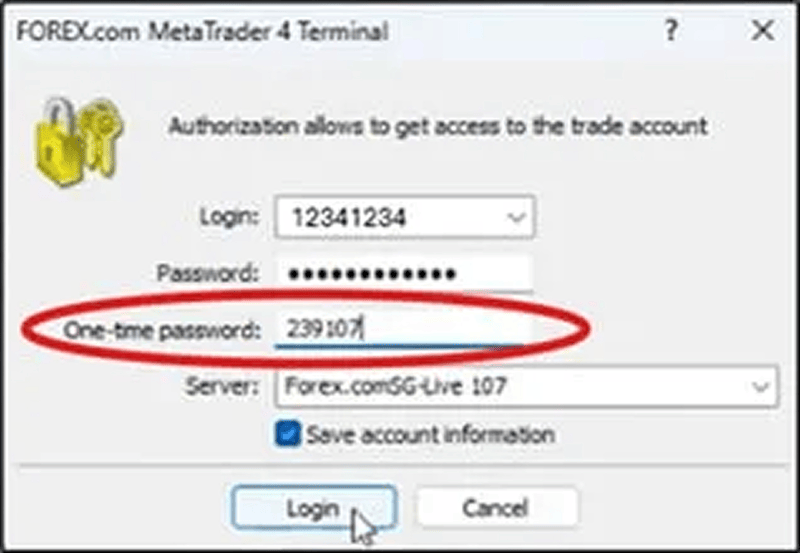
4. Click ‘Login’
On iOS
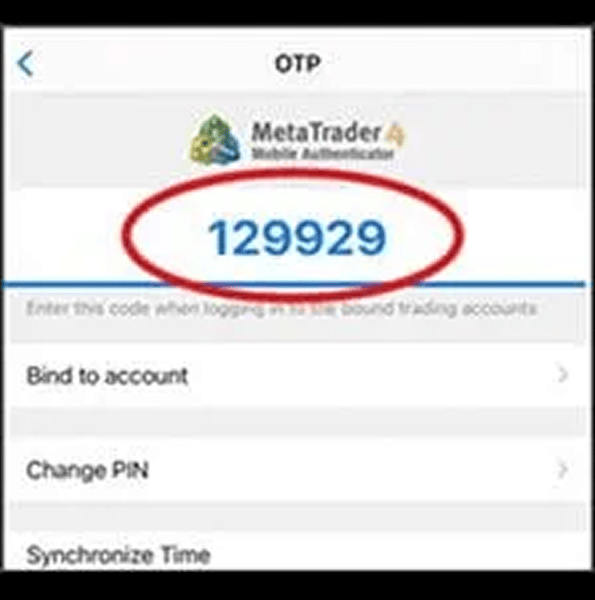
1. Select ‘Settings’ then ‘OTP’
2. Enter your 4-digit PIN if prompted
3. Enter the 6-digit OTP displayed into the ‘One-time password’ field on the desktop log in screen
You can choose to add your account details to your chosen authenticator app at the time you enable 2FA, or at any other time after that.
During initial 2FA set up
After setting up 2FA for the first time in MyAccount (by setting the ‘Two-Factor Authentication’ toggle to ‘enabled’), details for adding your account to an authenticator app will be displayed including a scannable QR code as well as account details that can be entered manually.
At any time after initial set up
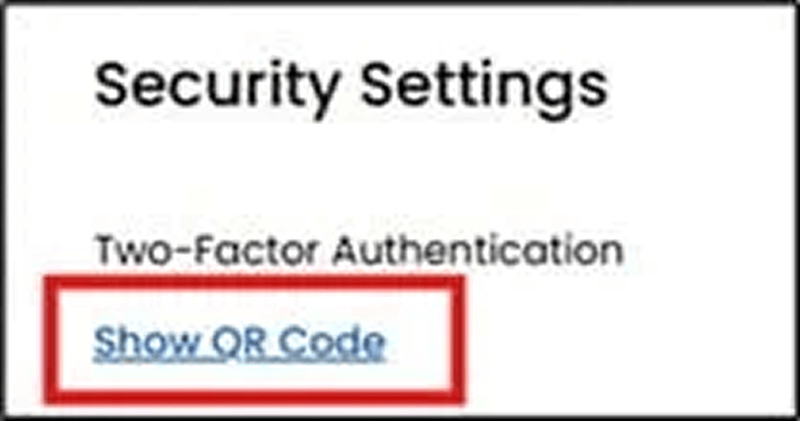
On desktop: navigate to MyAccount, choose the ‘profile’ tab and scroll to ‘Security Settings’. Select ‘Show QR code’ to display your account details to add to the authenticator app.
On mobile: navigate to ‘Settings’ and then select ‘Two-Factor Authentication’. Select ‘Show QR code’ to display your account details to add to the authenticator app.
2FA is currently available for our proprietary trading platforms - Web Trader and the FOREX.com mobile app, as well as MyAccount.
To access the MT4 platforms, a separate 2FA process using the MT4 mobile app to generate an OTP is required.
To log in to your FOREX.com account via TradingView, you will need to enable 2FA via MyAccount first.
Contact our Client Management team who are on hand to assist you with the set up.
The validity time of the OTP is 5 minutes. If you have exceeded this timeline when submitting the OTP then you will need to request a new one. We recommend clients enter their OTP as soon as possible once it has been received, to avoid any delays with log in.